How to Change Your Gmail Address Without Deleting It (2025)
Gmail ID Change: Rules for Changing Name Without Deleting Account 2025
Many people opened Gmail IDs in their childhood or out of passion, which they are now ashamed to use in their professional life. Until now, there was only one solution – deleting the old account and opening a new one. However, the good news is that Google is now offering users the opportunity to change their current Gmail ID without losing any data.
In simple words, you can now edit or change the previous part of your @gmail.com (username). However, for this, you have to follow some specific rules and steps.
What is the Google Gmail ID Change feature?
With this new feature, you can change your email address while keeping your Google account’s main folder, Google Drive files, YouTube channel, and contact list intact.
When you change your address according to the Gmail name change rules, your old email will remain as an ‘Alias.’ That is, if someone sends an email to your old address, it will also come to your new inbox. This is a huge relief for users.
In short, this update will not cause any loss of your account information even if your digital identity changes.
Gmail Address Change Terms (Limitations)
Before changing your name, it is important to know about some strict rules and terms of Google. You cannot change your name every day if you want.
The main conditions are given below:
- Time limit: You can change your Gmail username only once in 12 months (in a year).
- Maximum limit: A maximum of 3 name changes can be allowed on an account (depending on the age of the account).
- Unique name: If the new name you want is already used by someone else, then you will not be able to take it.
- Workspace account: This rule will not work on Gmail accounts (Google Workspace) provided by school, college, or office; in that case, admin permission will be required.
So, be careful before choosing a new name, and check whether the spelling is correct or not.
Get Free Certificates from Google And Meta Courses
How to Change Gmail ID? (Step-by-Step)
Follow the steps below to see if this feature is enabled on your account and to change the name.
Step 1: Sign in to your Google account
First, go to myaccount.google.com from your phone’s browser or laptop. Log in with your Gmail and password.
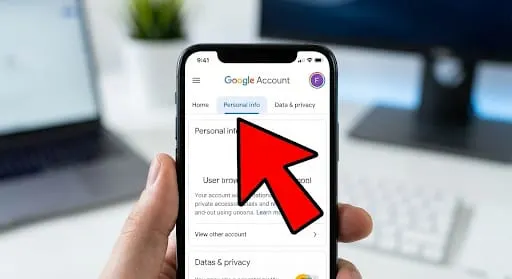
Step 2: Select Personal Info
You will see the ‘Personal info’ tab on the left side of the dashboard (on desktop) or in the top menu bar (on mobile). Click there.

Step 3: Go to the Email section
Scroll down to the ‘Contact info‘ section. Here you will see the ‘Email’ option. Click on it.

Step 4: Edit Google Account Email
Now look for a pen icon (✏️) or ‘Edit’ option next to the text ‘Google Account email.’
- If there is an ‘Edit’ option, click on it.
- Enter your new email name of choice and click ‘Save.’
- Complete the verification steps that appear on the screen.

If you don’t see the edit option, it means that this feature hasn’t been added to your account yet. Google is rolling it out to everyone.
Advantages and disadvantages of switching to Gmail
Any change has its pros and cons. Check them out before making a decision.
Advantages:
- Old data, photos, and files are safe.
- Opportunity to use a professional email name.
- No fear of missing old emails.
Disadvantages:
- It can only be changed once a year.
- May have to manually update emails in all third-party apps (e.g., Facebook, LinkedIn).
FAQ
No, none of your old emails, photos, or Drive files will be deleted. Everything will remain as before.
Yes, you can do this by going to Google Account Settings through a browser from any mobile or computer device.
Google is gradually rolling out this feature to all users. If the update has not reached your account yet, you will not see the edit option.
Your old email will remain as an ‘Alias.’ So if someone sends an email to the old address, it will also come to your new inbox.
Yes, this change is completely free for personal Gmail accounts.

One Comment